Managing User Accounts
The MiniReal system provides special features for users with the role of OWNER
and ADMIN. The type of user roles and their privilege is shown in the following table.
User Roles and Permissions
| Role | Description | ABMS Project | Sample Models | User Management |
|---|---|---|---|---|
| Owner | The user who deploys the web service onto an HPC resource. This role has all system privileges for maintenance and management. | generation, running | upload, download | update profile, create owner, create admin, create user |
| Admin | Users who manage samples and other users. This role is one level below the Owner. | generation, running | upload, download | update profile, create user |
| User | Normal users who run their models on the web service. | generation, running | download | update profile |
Note
The definition of System administrator is given to users with the role
of OWNER and ADMIN.
Viewing List of Users
System administrator users can view the list of users registered on the system by navigating to
the Users List page. This page can be reached to by selecting the Users List
option from the Admin dropdown found at the navigation bar.
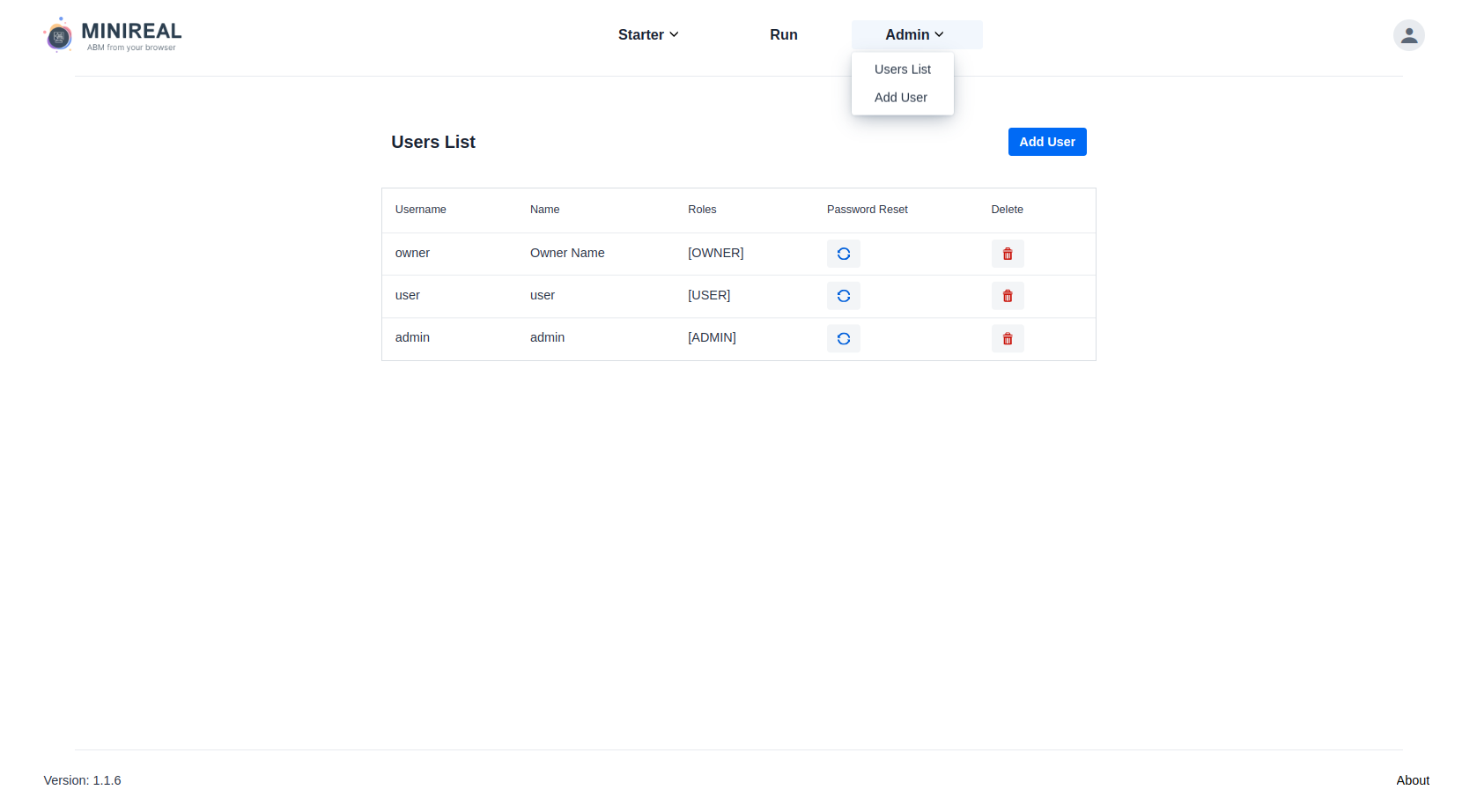
Figure: List of Users page
Creating New Users
System administrators can create other users with the privilege they have.
Creating new users is possible by filling out the necessary information on the Add User
page. This page can be reached through two ways through two ways.
- It can be done by selecting the
Add Useroption from theAdmindropdown found at the navigation bar. - Navigate to the
Users Listpage. Then from this page clicking on theAdd Userbutton will display the form to create a new user account.
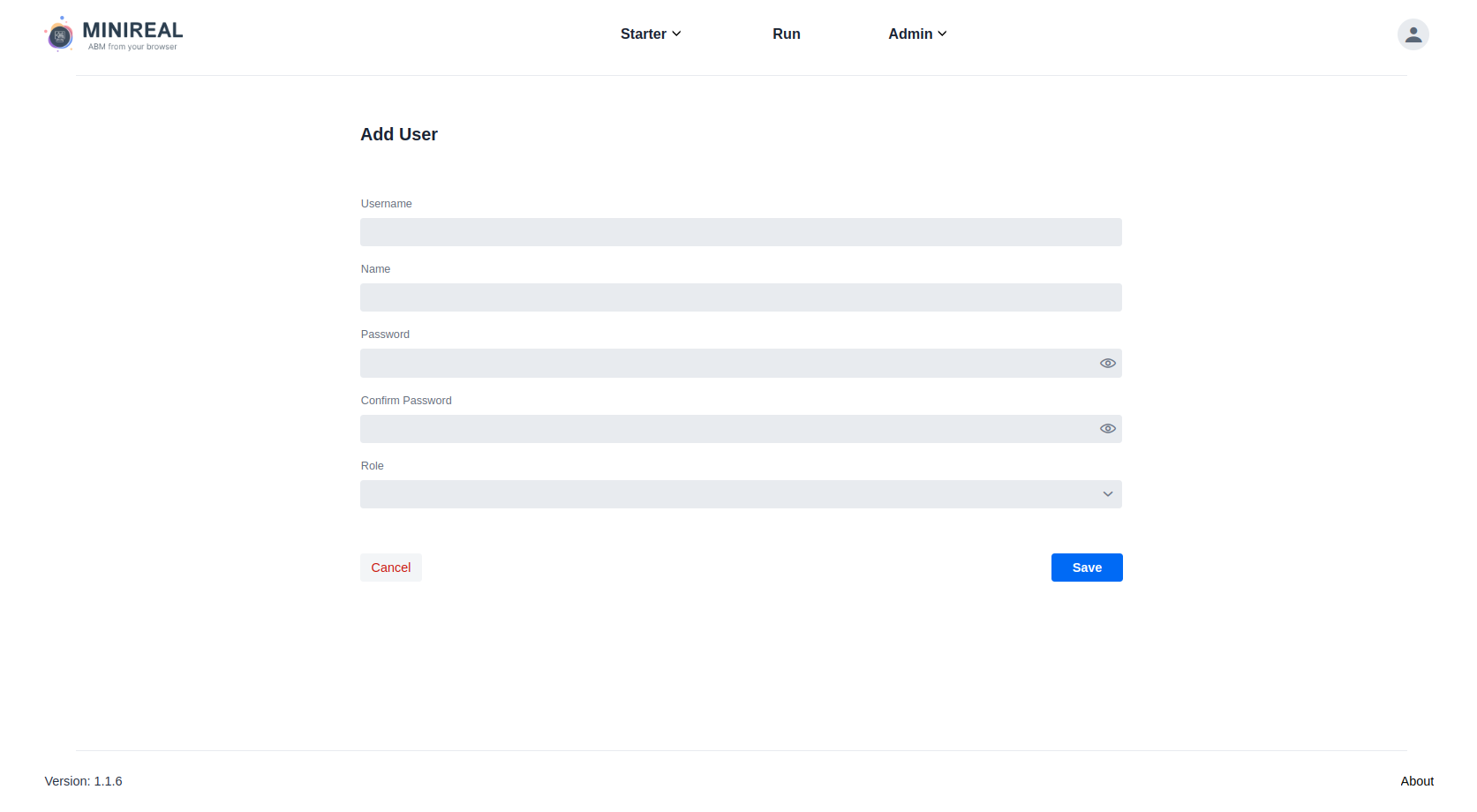
Figure: Add User page
The information required to register a new user is:
- username
- name
- password
- confirming the password
- role
Warning
Newly created users should change their password on an initial login since the initial password is created by System administrators.
Resetting Password for Users
Note
The action of resting in this context is defined as changing an existing password to a new one. System administrator users won't be able to view any password, but can change it when someone forgets their password.
To reset the password for a user, system administrators can click on the reset icon
for the respective user on the table found on the Users List page. A dialog will pop-up
to request for a new password.
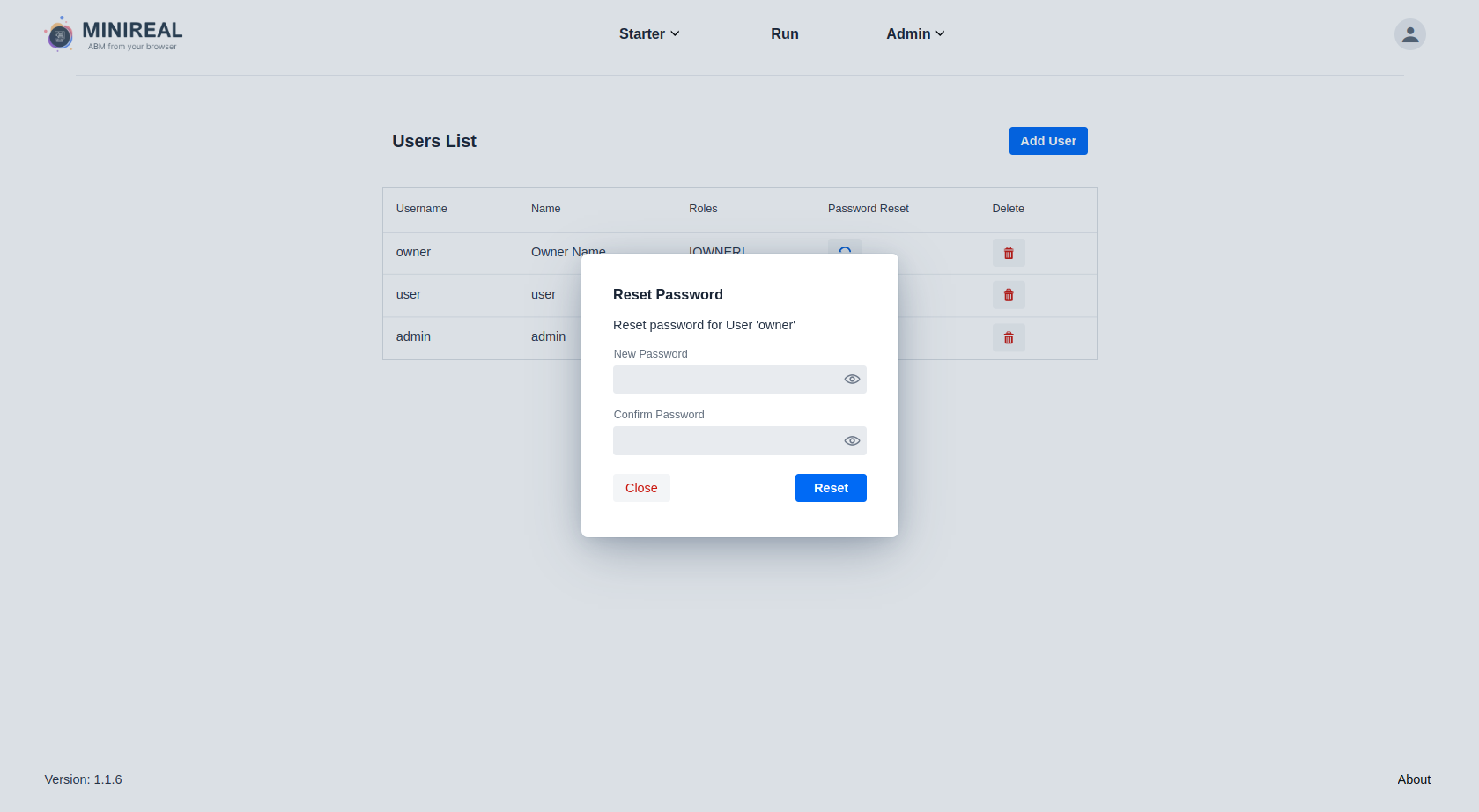
Figure: User password reset dialog
Deleting User Accounts
System administrators can delete user accounts by clicking on the delete icon for
the respective user from the users list table found on the Users List page. This
will invoke a confirmation dialog to ensure that the deletion action is intended.
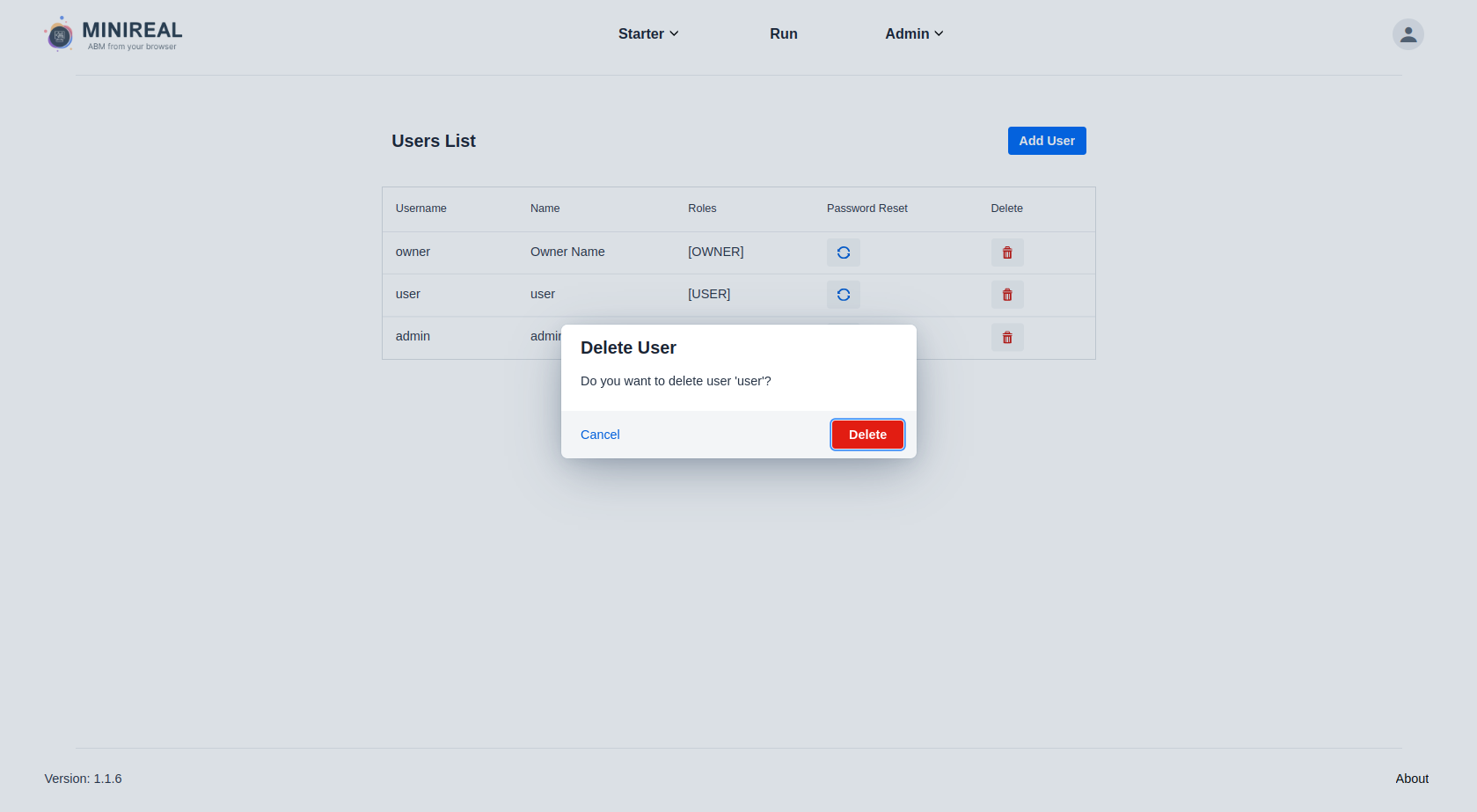
Figure: User deletion confirmation dialog
Note
Users with the ADMIN role can add, delete or reset password to users with USER
role only.
However users with the OWNER role can add, delete or reset password for all types
of user roles.